You have the photo of you and your daughter from last summer, and the one your parents sent from home. What you don’t have is one picture with all four of you in it.
This guide covers how to get it: which source photos work, the steps, what the AI keeps, and what to fix when the first result isn’t right.
Why merging photos by hand looks fake
Cutting people out of one photo and pasting them into another is easy. Making the result believable is not, and the reasons are physical, not artistic.
- Perspective. A selfie is taken at arm’s length with a wide phone lens. A photo from across the room is taken from two metres away. Faces from each carry different distortion, and your eye notices when they stand side by side.
- Light direction. If the window is on the left in one photo and the sun is behind the camera in the other, the shadows on the faces fall different ways. Nobody can name what is wrong, but everyone sees it.
- Head scale. Someone pasted in at the wrong size looks like they are standing a metre in front of or behind the others. Getting it right means guessing everyone’s real height and distance from the camera.
- Edges and colour. Hair against a new background, the colour cast of different rooms. Each is fixable in an editor; all of them together is an afternoon.
A collage app avoids the problem by not trying: it puts the photos side by side in frames. That is honest, but it reads as a collage, not as a family portrait.
An AI merge doesn’t cut and paste pixels. It composes a new scene with one camera, one light and one scale, and places each person into it from their own reference photo. That is why the result can look like one moment, and why your reference photos matter so much.
What a good source photo looks like
| Works | Will not work |
|---|---|
| Face toward the camera, eyes visible | Side profile, or face turned away |
| Daylight or even indoor light | Harsh sun with deep shadow across the face |
| The original phone photo, or a clear scan | A small thumbnail saved from a group chat |
| One or several people, all clearly visible | Someone half hidden behind another person |
| Everyday glasses the person always wears | Sunglasses, a hat pulled low, a mask |
Five rules cover almost every case:
- The whole face is visible and not in profile. Each face is kept as it is in the reference, so the reference has to show it. A slight turn is fine. A side profile leaves half the face to guesswork.
- Similar light across the photos. It doesn’t have to match, but two daylight photos give a more consistent portrait than a midday beach shot next to a dim kitchen at night.
- No sunglasses and no heavy shadow on the face. Anything that hides the eyes hides most of what makes someone recognisable.
- Enough resolution. If a face is only a few dozen pixels wide, there isn’t enough detail to keep a likeness. Use the original file, not a screenshot or a forwarded copy.
- One person can appear in several photos, but everyone must be clearly visible at least once. It’s fine if Grandma is in two of the photos. It’s not fine if the only photo of your brother shows the back of his head.
If the only photo of someone is an old, damaged print, repair it first with photo restoration and use the restored version as the reference.
Step by step in Phoxel
- Start a family merge from the family photo merge page.
- Upload 2 to 6 photos that together show everyone. Each photo can show one person or several. JPG, PNG, WEBP and HEIC files up to 12 MB each are accepted.
- Pick the setting: studio portrait, home living room, garden and outdoor, or festive / holiday card.
- Pick the clothing: as in the photos (the default), coordinated outfits, or matching winter knits.
- Pick the framing: classic print (3:4), portrait (4:5), square (1:1) or wide (16:9).
- Generate. A portrait usually takes one to three minutes, and each one is 10 credits.
Generate two or three variants and keep the one where everyone looks most like themselves.
What the AI changes and what it never does
Read this part before you share the result.
What stays the same:
- Faces and likeness. Every person is tied to their own reference photo: same facial structure, same features, same apparent age, same hairstyle. No beautifying, no de-aging.
- The head count. Everyone from your photos appears exactly once. Nobody is invented and nobody is dropped.
- Clothing, by default. People wear what they wear in their own photo. It only changes if you choose coordinated outfits or matching winter knits, and clothing is the only thing that gets restyled.
What is new:
- The setting, the light and the arrangement. The background, the direction of the light and where each person stands or sits are composed, so the portrait reads as one scene.
What it never pretends:
- That the moment happened. The result is an AI-composed portrait built from real photos. The people are real; the gathering is composed. For a family album or a holiday card, that is the point. If you share it somewhere people don’t know the story, say that it is a composite.
If someone you want in the picture has passed away, there is a separate, quieter tool for that: the memorial portrait adds a person into an existing family photo instead of composing a new scene.
Common problems and fixes
One face looks slightly off. The reference for that person is almost always the cause: low resolution, a strong angle, or shadow across the face. Swap that one photo for a clearer one and generate again. The other photos can stay.
Head sizes look uneven. This tends to happen when one photo is a close selfie and another is a wide shot where faces are small. Where you can, use photos taken from a similar distance, so every face arrives with a similar amount of detail.
Someone is missing. Check that the person is clearly visible in at least one photo: face toward the camera, not half hidden behind someone else. Stay within six photos. If you are near the limit because the same people repeat across photos, drop the repeats and keep the clearest photo of each person.
The clothes look like two different seasons. A beach shirt next to a winter coat reads as two different days. Switch the clothing option to coordinated outfits or matching winter knits.
Before and after
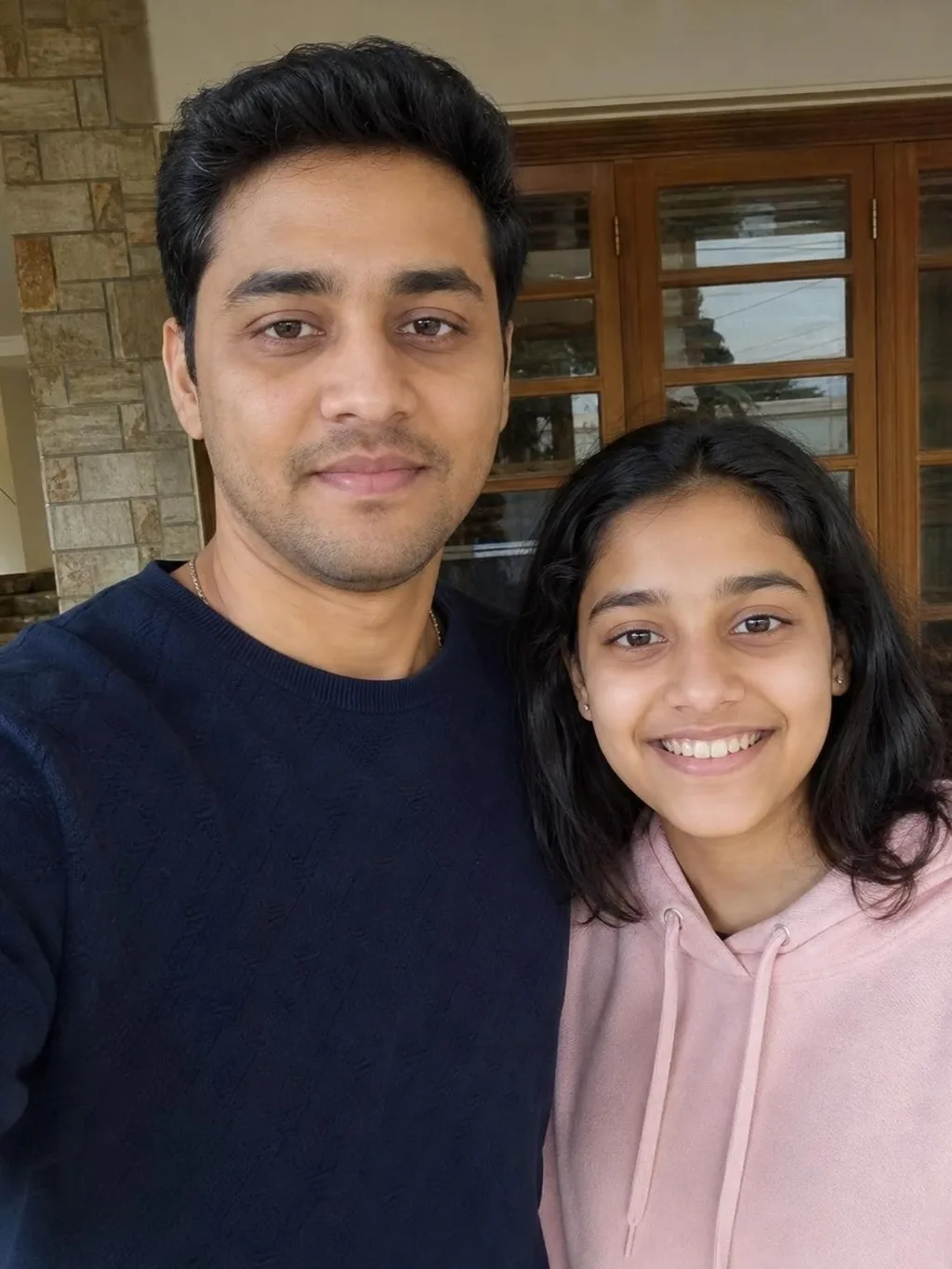
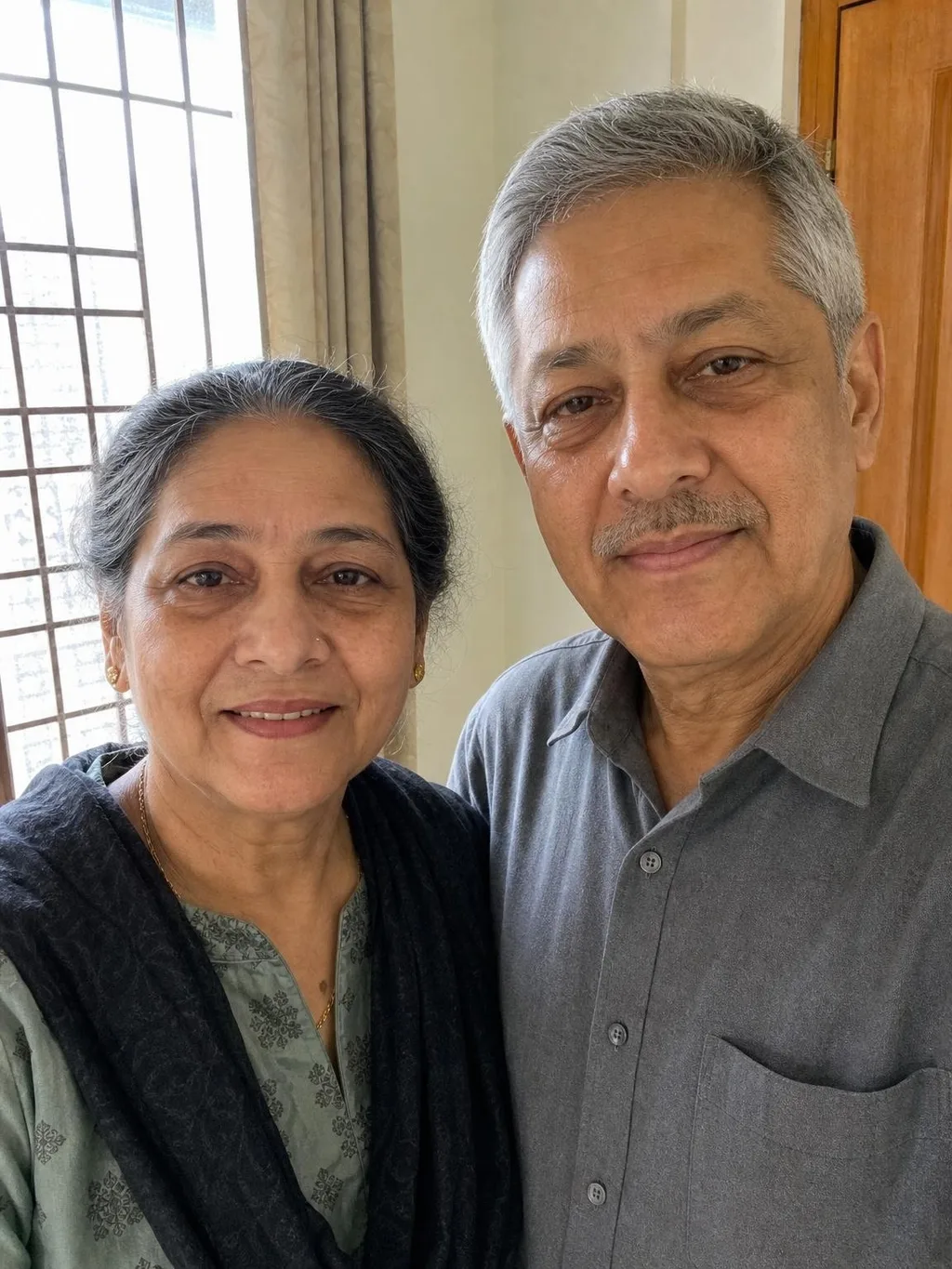
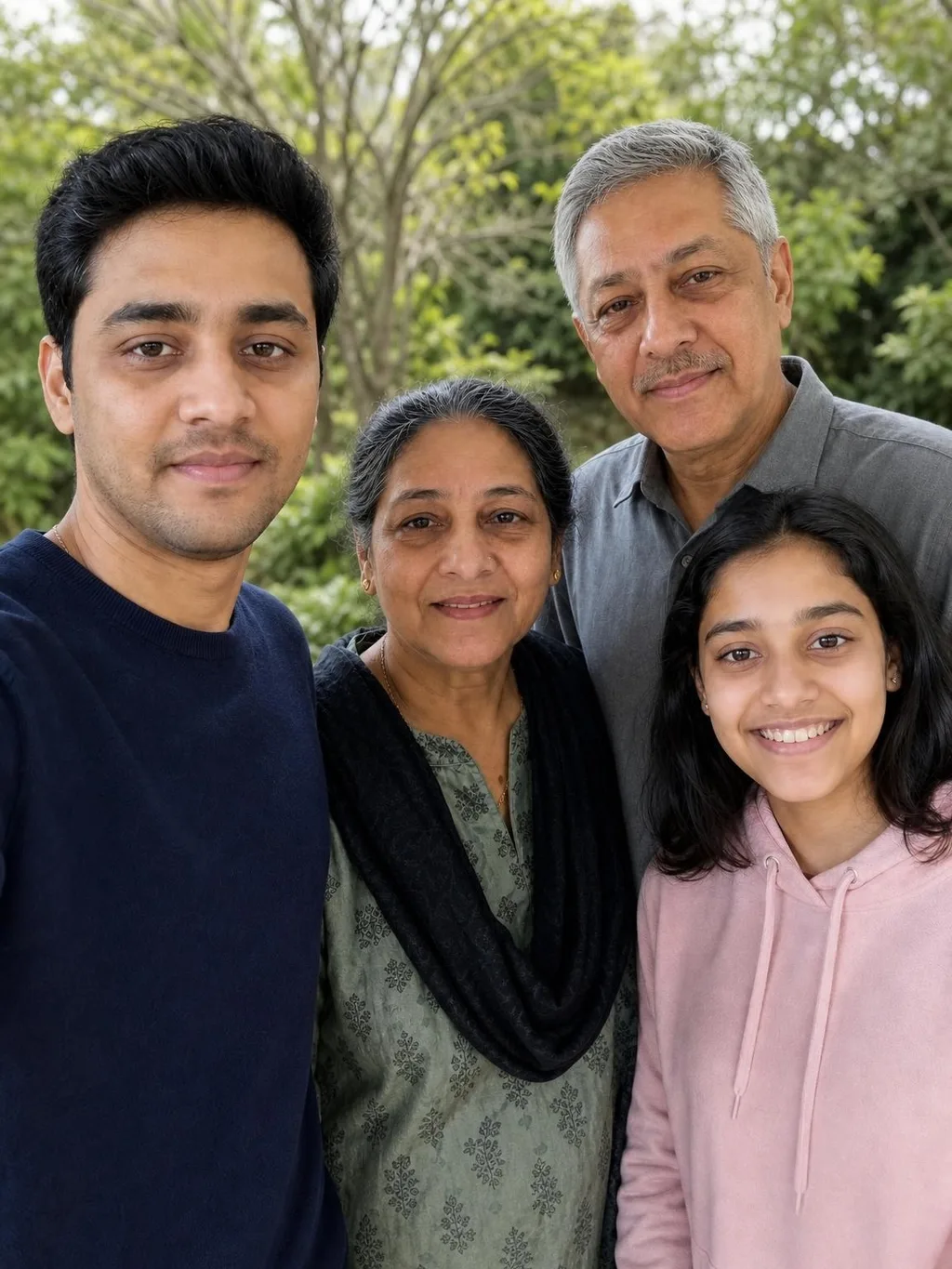
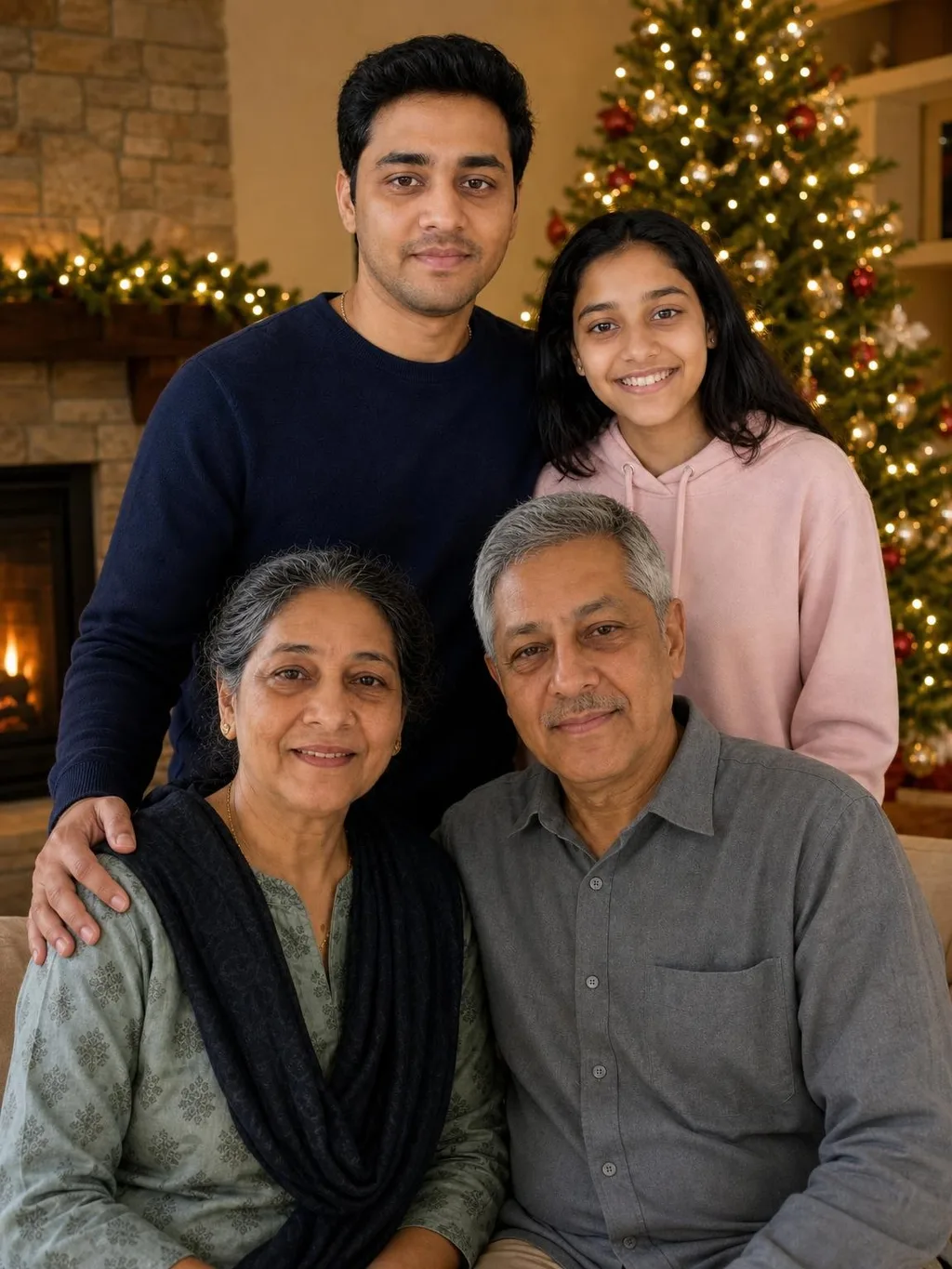
These are real Phoxel outputs, made from the two input photos below with the clothing option left as in the photos.
FAQ
Can I combine photos from different years or decades?
Yes, with one thing to know: each person keeps the apparent age they have in their own photo. A photo of your father from 1985 next to a photo of your daughter from last year gives a portrait of both at those ages. Choose each photo by the age you want that person to appear.
How many people can be in one merged portrait?
The limit is 6 photos, not a number of people, and each photo can show one person or several. The larger the group, the more it matters that every face is clear in its reference.
Can I use old printed photos?
Yes. Photograph the print with your phone first, without glare or your own shadow. If it is scratched, faded or torn, run it through photo restoration and use the restored file as the reference, since damage on a reference carries into the likeness.
What does it cost?
Credit packs start at $6 for 200 credits, and 10 credits = 1 photo. Credits never expire and there is no subscription. On a new account, your first 2 photos are free as watermarked previews - any credit pack unlocks them in full resolution.
What happens to the photos I upload?
They are used only to generate your portraits. Uploads that are never attached to a project are deleted automatically after 24 hours. Photos attached to a project stay so the project page can show what the result was based on, and they are deleted when you delete the project.